ERASYOpen App

AI Music

How to Download a Suno Song as MP3 (2026)

By Eddie Mathews··7 min read
How to Download a Suno Song as MP3 (2026) — Erasy

Downloading a Suno song as an MP3 takes about ten seconds. Getting that file ready to release takes one more step most people skip — and it is the step that decides whether the track survives.

Here is how to download Suno as MP3, whether to pick MP3 or WAV, and what to do before you upload it anywhere.

The short version

Open your song, hit the menu, choose Download, pick MP3 or WAV. Use WAV if you plan to distribute.

A raw export still carries inaudible markers and off-spec loudness — clean and master it with Undetectr before you upload.

How to download a Suno song as MP3
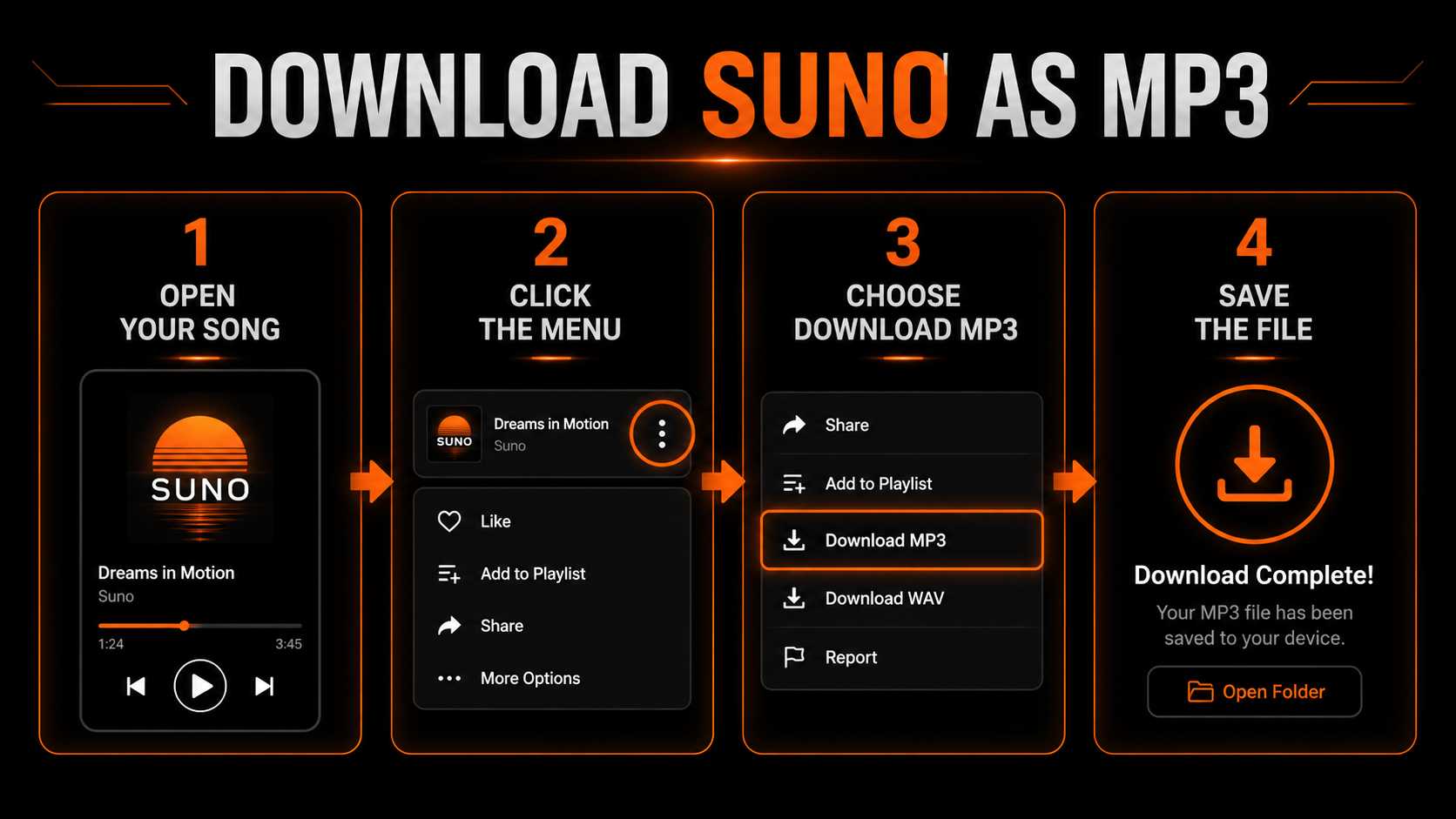
Download Suno as MP3 in four steps: open your song, click the menu, choose Download MP3, and save the file
Four clicks from Suno to a saved MP3.
01
Open your song

Go to the track you want in your Suno library and open it.

02
Click the menu

Hit the three-dot menu on the track to open its options.

03
Choose Download

Select Download, then pick MP3 or WAV. WAV keeps full quality.

04
Save the file

The file downloads to your device, ready to process.

One note: downloads depend on your plan, and you need a paid plan to hold commercial rights to the track you are exporting.

MP3 or WAV — which should you pick?
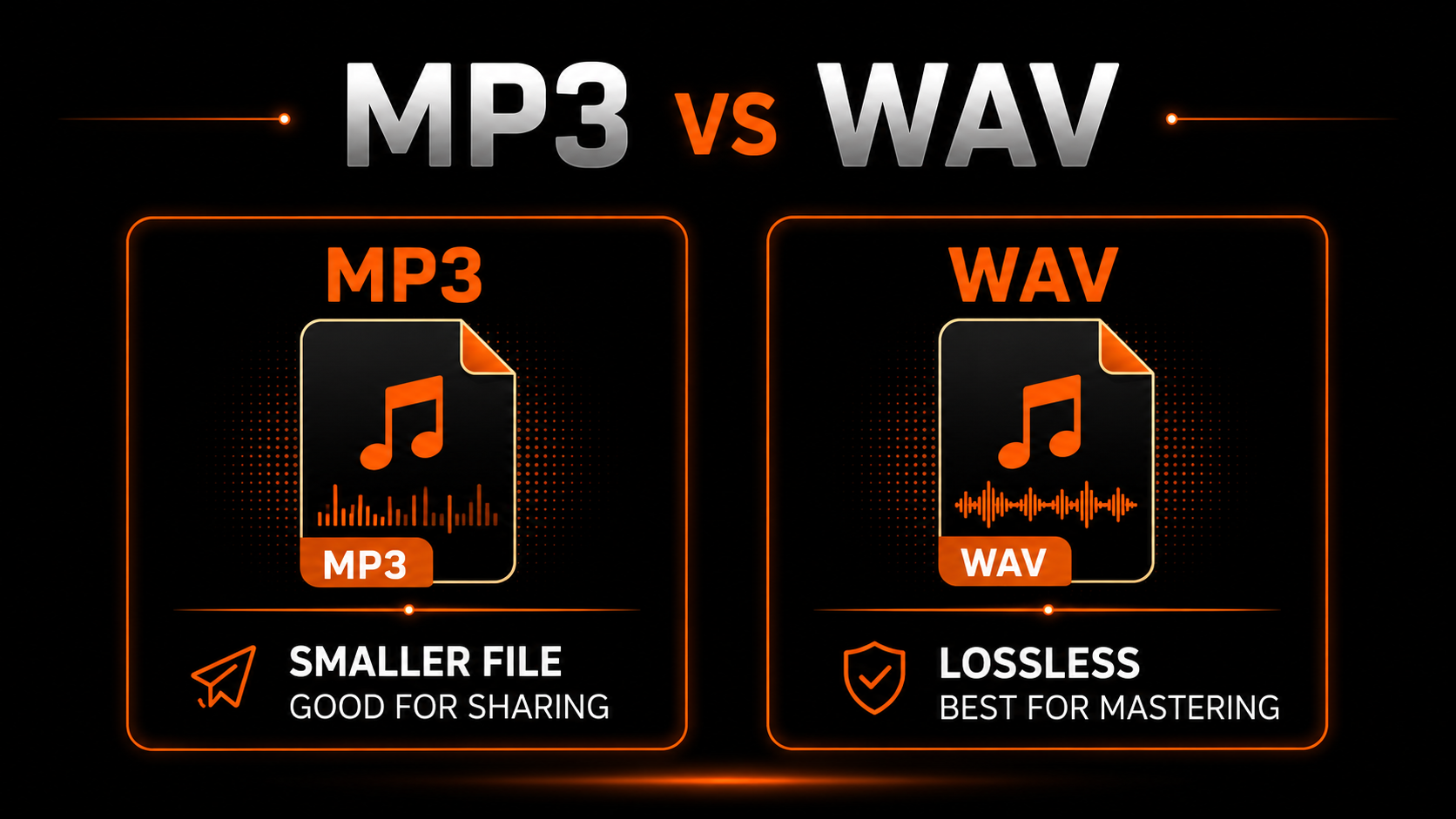
MP3 vs WAV: MP3 is a smaller file good for sharing, WAV is lossless and best for mastering
MP3 for sharing, WAV for anything you'll master or release.

MP3 is compressed and small — perfect for sending to a friend or a quick listen. WAV is lossless and preserves the full signal, which matters the moment you plan to master, clean or distribute the track. If release is the goal, download the WAV.

One step before you distribute

Downloading the file is not the finish line. A Suno export — MP3 or WAV — still carries the inaudible watermark and spectral fingerprint every AI track has, plus off-spec loudness. Upload it raw and a distributor can flag it.
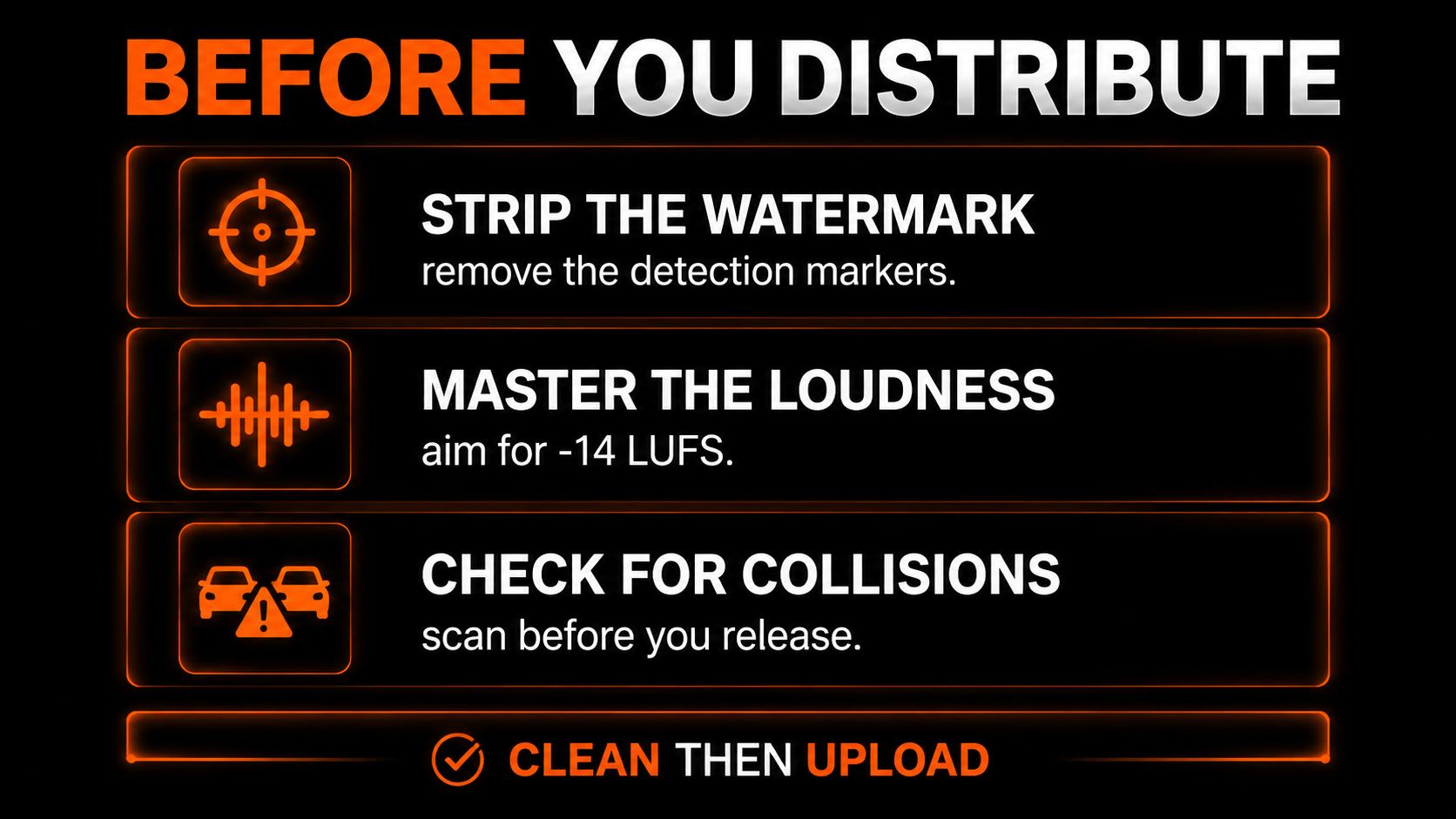
Before you distribute: strip the watermark, master the loudness to -14 LUFS, and check for collisions, then upload
Clean, master and collision-check before you upload.

Run the download through Undetectr — the only AI watermark remover built for music — to strip the markers, master to platform loudness in one browser pass. Then the file is ready to release.
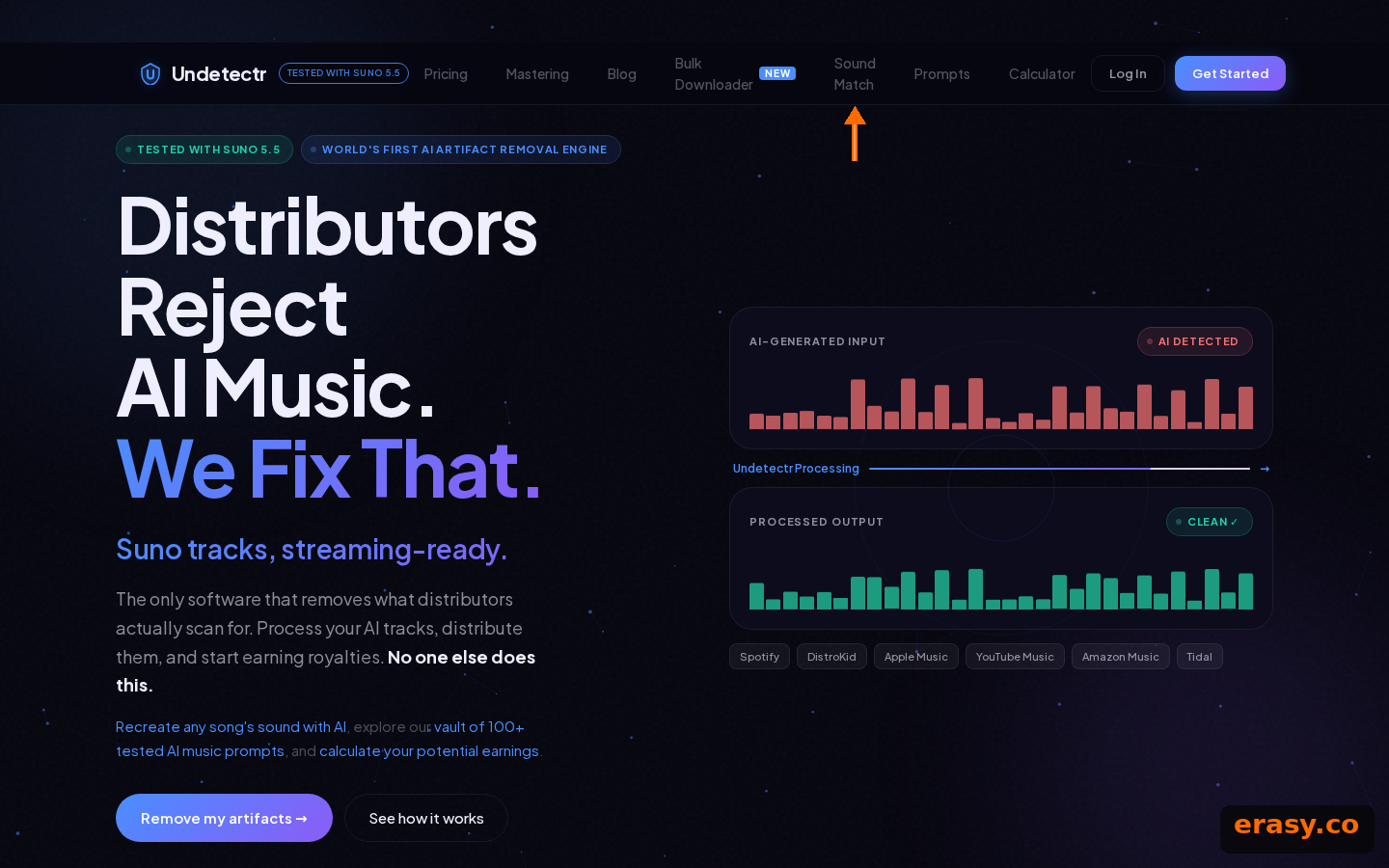
Undetectr turning a raw Suno export into a clean, distribution-ready file
From raw Suno export to distribution-ready.

Our recommended tool

Downloaded it? Now make it distributable.

Strip the markers, master to spec, and pass detection on the first upload. Try Undetectr free — no credit card, 150+ platforms.

Frequently asked questions

How do I download a Suno song as MP3?+
Open the song in Suno, click the three-dot menu, choose Download, and select MP3 (or WAV). The file saves to your device. Downloads require a plan that permits it, and you need a paid plan for commercial rights to the track.
Should I download Suno as MP3 or WAV?+
MP3 is smaller and fine for sharing or quick listening. WAV is lossless and the better choice if you plan to master, clean or distribute the track, because it preserves the full quality for processing. Grab the WAV when release is the goal.
Can I download Suno songs for free?+
Free plans may allow downloads, but free-tier songs are non-commercial only — you cannot legally distribute or monetize them. For a track you intend to release, generate and download on a paid plan.
Why won't Suno let me download my song?+
Downloads depend on your plan and on holding the rights to the track. If the option is missing, check that you are on a plan that permits downloads and that you generated the song under that plan.
Can I upload a downloaded Suno MP3 straight to Spotify?+
Not as-is. A raw Suno export carries inaudible detection markers and off-spec loudness, so it can be flagged or turned down. Clean and master it first with Undetectr, then distribute.